Design an apartment building poster in Canva
Designed a 25 × 33 cm apartment-building poster in Canva: set the custom canvas size, placed and proportioned the building photograph, added the project name and write-up with sized and styled typography, removed the background from a supporting image, aligned the graphic elements, then grouped related pieces and locked the finalized ones.
Steps463
Duration10m 31s
Deliverables1
Rubric checks8
463 steps
Timeline · action type by step
001116232347463
←/→ step · space play
Design an apartment building poster in Canva
Design a promotional poster for an apartment building, sized for a half-page newspaper advertisement, entirely through the Canva GUI.
- Open a new Canva design and set custom dimensions to 25 × 33 cm.
- Upload the apartment building photograph from the desktop, place it in the poster, and adjust its size and position to suit the composition.
- Add the project name and supporting write-up as text: set font style, size, colour, and text effects, and position/align the text to create a clear visual hierarchy.
- Add a second image sourced from Google. Use Canva's Background Remover to remove its background, then resize and position it within the poster.
- Add a geometric shape as a graphic element, with relevant write-up text over it; adjust the shape and text's size, position, and alignment.
- Group related design elements together so they move and edit as one.
- Lock the completed elements to prevent accidental movement or edits, then fine-tune the positioning and layering of everything to complete the composition.
Deliverable · captured from the machine
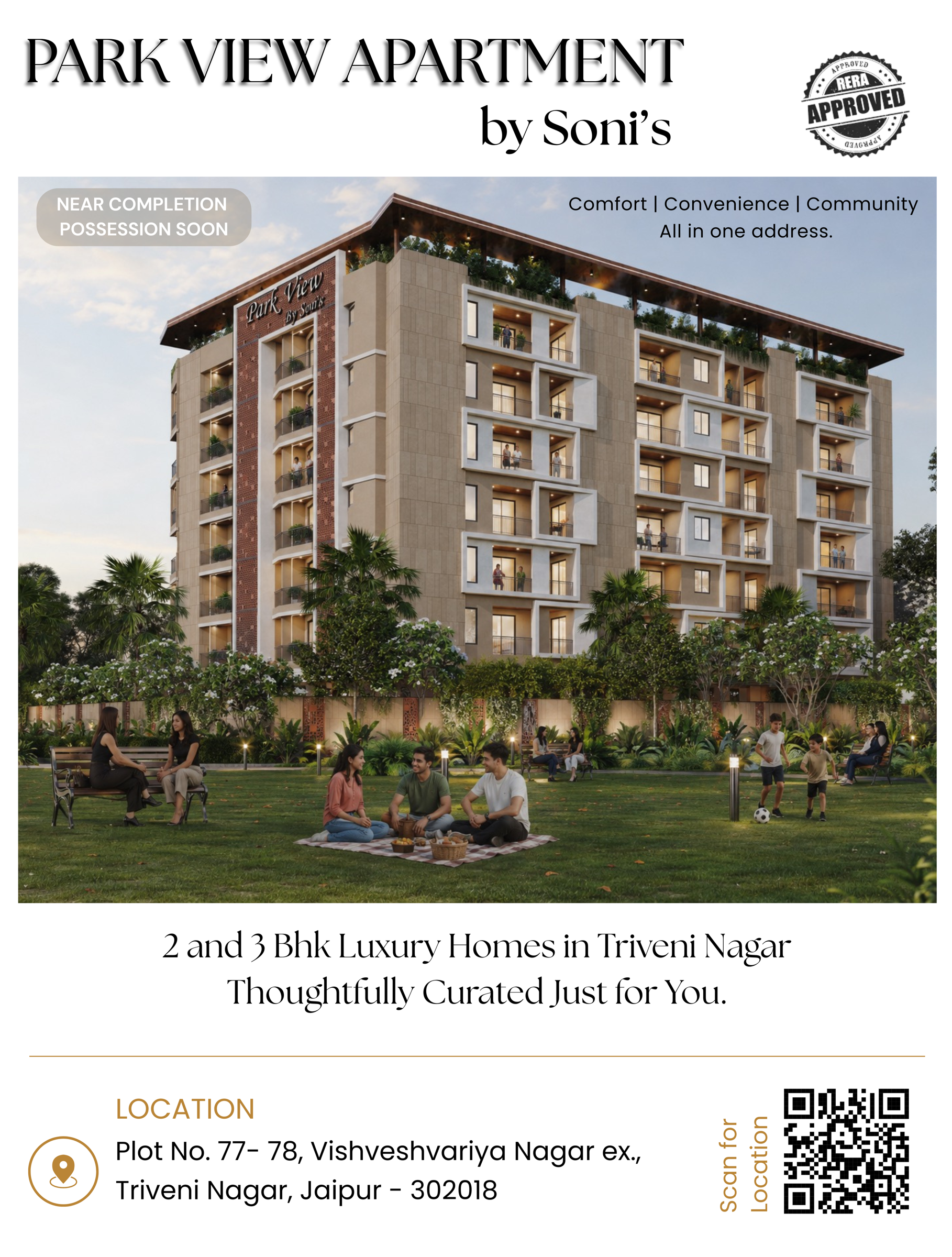
PARK VIEW APARTMENT.pngdownload ↓
- ✓Poster dimensions are 25 x 33 cm
- ✓Building photograph is correctly positioned and proportioned
- ✓Project name and required write-up are clearly visible
- ✓Typography is appropriately sized, coloured, and styled
- ✓Supporting image has its background successfully removed
- ✓Images and graphic elements are properly aligned and positioned
- ✓Related elements are grouped appropriately
- ✓Important/finalized elements are locked